Build
Our build system entails a series of steps executed in a specific sequence, designed for maximum flexibility to accommodate your needs.
Build initiation happens through two possible triggers: a CLI deploy or a GitHub push once you've connected your repository to our platform.
Upon receiving your code (via CLI or GitHub), we initiate the build process using Docker.
You have the option to initiate a new build manually from our web app.
Docker
For Docker, we offer three configuration options:
Docker Preset: With presets for technologies like Node.js, Meteor, and more, we automatically set up a Dockerfile for you.Dockerfile Path: Alternatively, you can create your own Dockerfile. We'll use it to build your app, but you'll need to specify the Dockerfile Path relative to your code root path.Dockerfile Content: You can input your Dockerfile content directly into our web app. This is useful for custom Dockerfile requirements.
You can initiate with our Docker Preset, edit it in our web app, and then save it as a custom Dockerfile using the Dockerfile Content option.
Image
We build a Docker image to run your app on our platform.
After your image is prepared, the next stage is Deploy.
We've implemented intelligent detection to reuse images. If an earlier build with the same code exists, we'll leverage that image to optimize time and resources.
Source builds consume account-level build minutes. Most accounts stay within the included monthly build time, and build overage is charged only from August 2026 onward. See Pricing details for the included minutes, overage price, and billing rules.
Runtime startup configuration
The command used to start a container belongs to the app environment's runtime configuration, not to its build configuration. A startup command override therefore does not change the Docker image, build configuration, or image-reuse hash.
This lets one source build run as different processes in different
environments. For example, one environment can use the image default
bun run start:api while another starts the same image with
bun run start:worker.
A source deployment still goes through the normal build flow. When the source and build settings match an existing image, Quave ONE can reuse that image and apply the environment's startup override only at deployment time.
Rebuild
You can rebuild any existing builds by clicking the Rebuild button in the Activities sidebar.
This will trigger a new build with the same content as the original one.
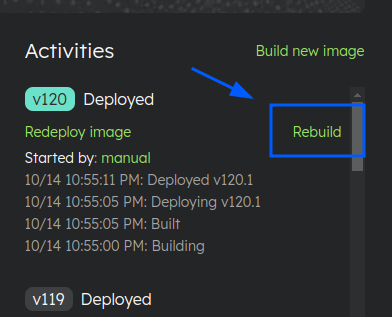
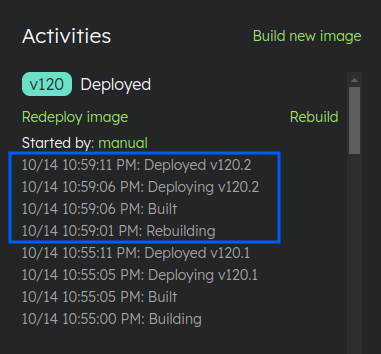
You can check the status of your new build in the Activities sidebar.
Once the build is complete, the deployment process will start automatically.
It's important to note that the Rebuild button is only available for versions whose source was uploaded via the CLI or GitHub.
If you deployed your app using a Docker image or if the version was created through the Image Reuse flow, you won't be able to rebuild it.
Note: You may see an indicator of "Build changes" after clicking the
Rebuildbutton. This happens because the build configuration of the chosen version is used for the new build, and not your current build configuration.